
By Jordan Vale
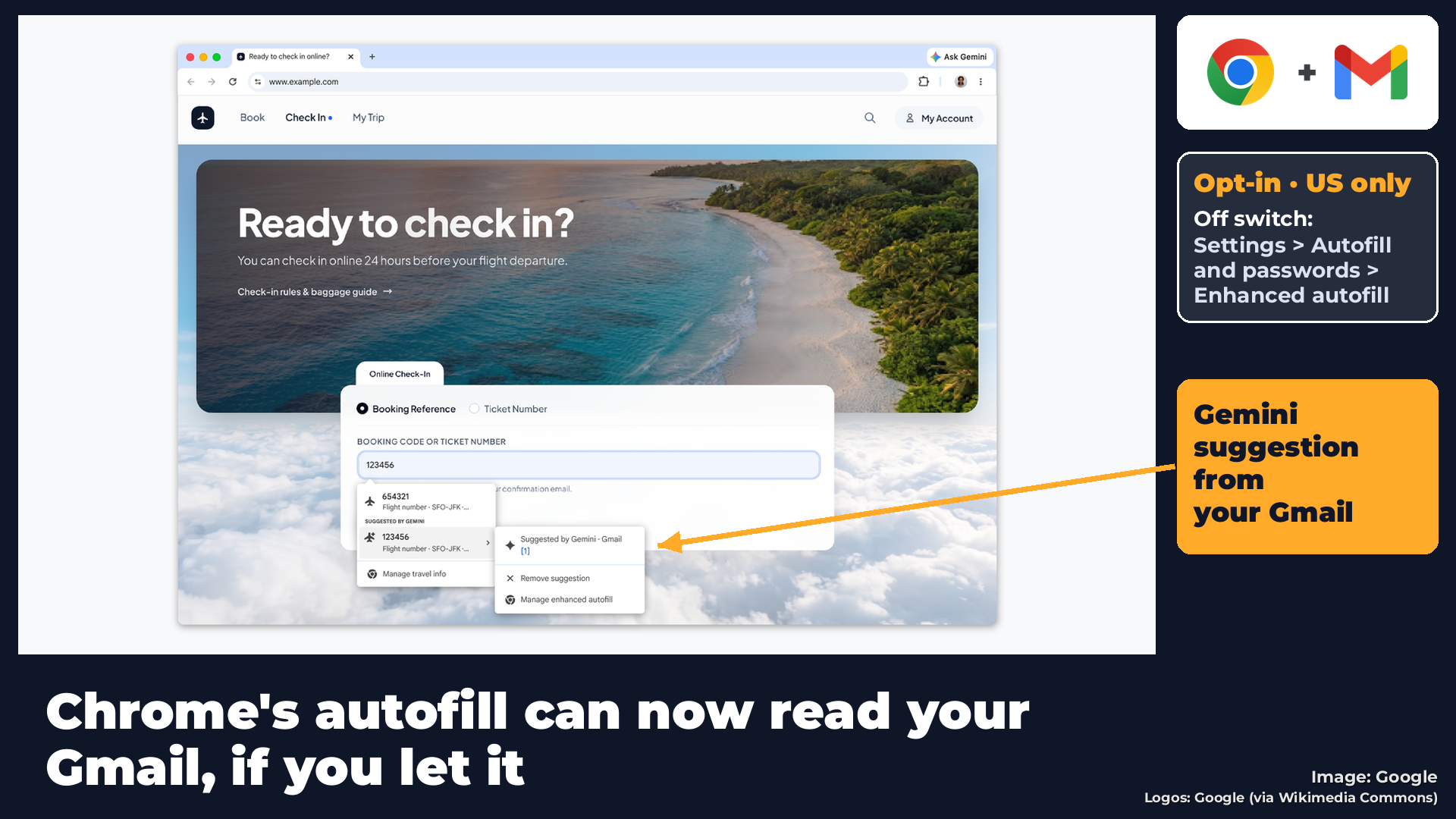
Image: Google. Logos: Google (via Wikimedia Commons).
You are on a website, trying to return a jacket. The form asks for your order number. So you open a new tab, search your inbox, scroll, copy, switch back and paste. It takes two minutes and a little patience. Starting Wednesday, Google's Chrome browser can offer to fill in that number for you, by finding it in your Gmail. Here is what it does, who gets it, and how to turn it off.
What Google announced
On Wednesday, October 28, Google said in a Keyword blog post that Chrome's enhanced autofill can now "automatically suggest information pulled directly from Gmail as you fill out online forms."
Autofill is the familiar feature that already types your name, address or card number into a form. The new part uses Gemini, Google's AI assistant, together with a feature called Personal Intelligence, which lets Gemini look at your Google apps. Google's examples are order numbers, tracking information and flight bookings. Google's Chrome help page also lists vehicles.
The suggestions appear in the normal dropdown list under a form box, marked with Gemini's small spark icon.
Who gets it, and who doesn't
This is not switched on for everyone. According to Google's help page, enhanced autofill is for people who:
- live in the United States,
- are 18 or older,
- use Gemini in Chrome, on a computer, Android or iOS,
- and have chosen to turn on Personal Intelligence.
Google's post says it is "beginning to roll out", so it may take time to reach everyone who qualifies. Readers in Canada and elsewhere won't see it for now.
What Google says about privacy
Google's post says: "As always, sensitive data is encrypted and you remain in control." It says you can choose whether enhanced autofill is on and what it can access in Chrome settings.
Ink, not pencil: Google's post does not give more detail on how this email data is stored or used, so we are not guessing beyond what the company has said.
The off switch, step by step
Google's help page gives these steps for Chrome on a computer:
1. Open Chrome. 2. At the top right, select More (the three dots), then Settings, then Autofill and passwords. 3. Under "Autofill settings", select Enhanced autofill. 4. Turn "Find and fill with Gemini" on or off.
Two other handy controls, also from Google's help page:
- See where a suggestion came from. Hover over the Gemini suggestion in the dropdown and choose the link to the source. The original email opens in a new tab.
- Remove a suggestion you don't want. Hover over it and choose Remove from Chrome. This does not delete the email. But deleting the email does remove the suggestion.
A sensible habit
Think of it like a helpful neighbour who has a spare key to your mailbox. Handy when you need a parcel, but you still want to know who has the key. If you share a computer with family, or use one at work or in a library, it is worth checking this setting, along with whether you are signed in to Chrome at all.
Why regular people should care
Most of us fill in forms every week: returns, deliveries, flight check-ins. A tool that finds the right number in your inbox can save real time and small frustrations. The trade-off is simple to state: the browser looks through your email to help you. Google has made it opt-in and given an off switch, and a link back to the source email, so you can decide what feels right for you.
What's next
Google says the feature is rolling out now in the US. There is no date yet for other countries. If you use Gemini in Chrome, look for the spark icon in form dropdowns over the coming weeks, and visit Settings > Autofill and passwords to choose what you're comfortable with.